
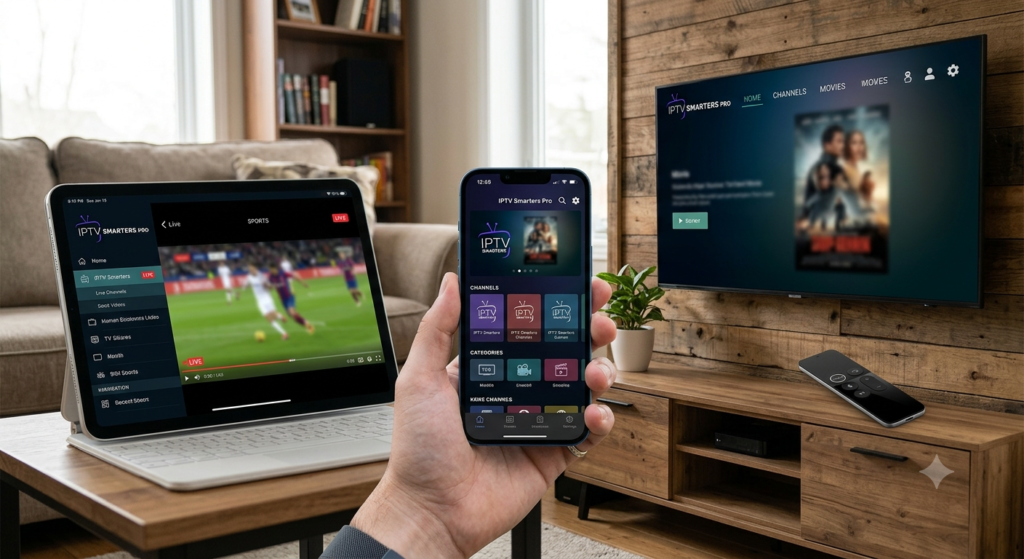
IPTV Smarters Pro is one of the most widely used player apps in the IPTV world, and for good reason — it’s fast, stable, and works consistently across almost every platform, including iPhone, iPad, and Apple TV. If you’ve just signed up for a subscription, this guide will take you from download to full setup, plus how to get the most out of the app and fix anything that goes wrong along the way.
Chapter 1: Before You Start
1.1 Your Device and Network
A great IPTV experience depends less on your device and more on your connection.
- Wired is best, where possible: If you’re using an Apple TV, connecting it to your router via Ethernet (using an Ethernet adapter if your model doesn’t have a built-in port) gives the most consistent performance.
- On Wi-Fi: Connect to your router’s 5GHz band rather than 2.4GHz whenever you can — it’s faster and less prone to interference.
- Bandwidth: Aim for at least 15–25 Mbps of stable bandwidth for smooth HD/FHD playback, especially if other devices on the network are streaming or downloading at the same time.
1.2 Have Your Login Details Ready
You’ll typically receive one of the following from your provider:
- Xtream Codes login: a Server URL, Username, and Password, or
- M3U URL: a single playlist link
Keep this information handy — you’ll need it during setup.
Chapter 2: Installing and Configuring IPTV Smarters Pro
Step 2.1: Download the App
On iPhone or iPad:
- Open the App Store.
- Search for “IPTV Smarters Pro.”
- Tap Get to install it.
On Apple TV:
- Open the App Store app on your Apple TV.
- Search for “IPTV Smarters Pro.”
- Select it and choose Get to download.
Step 2.2: Open the App and Choose a Login Method
On first launch, you’ll be asked how you’d like to add your service. You’ll usually see a few options:
- Login with Xtream Codes API — recommended if your provider gave you a server URL, username, and password. This unlocks the full program guide and organized VOD/series libraries.
- Load your playlist via URL (M3U) — if that’s the format your provider issued instead.
For most users, Xtream Codes API gives the smoother, more complete experience.
Step 2.3: Enter Your Details
You’ll land on a short form. Take your time — this is the step where small mistakes cause most login issues.
| Field | Purpose | What to Enter |
|---|---|---|
| Name Your Playlist | A label only you see | Anything memorable, e.g. “My Setup” |
| Server URL / Portal Address | Where the app pulls your content from | Enter exactly as given, including http:// or https:// |
| Username | Your account ID | Case-sensitive |
| Password | Your account key | Case-sensitive |
Pro tip: On iPhone and iPad, use the built-in keyboard’s autocorrect-off mode or paste credentials directly if your provider sent them digitally — this avoids typos like mistaking a lowercase “l” for the number “1.”
Step 2.4: Connect
Tap Add User (or Login). The app will:
- Authenticate your details with the server.
- Download your channel groups, program guide (EPG), and on-demand libraries.
The first load can take a minute or two while it builds its local cache — this only happens once. After that, you’ll be dropped straight into the home screen.
Chapter 3: Getting the Most Out of IPTV Smarters Pro
On iPhone and iPad
- Swipe between the Live TV, Movies, and Series tabs to browse content types.
- Tap the guide icon while watching to bring up the EPG — scroll through time slots to see what’s on now and later.
- Long-press a channel to add it to Favorites for quick access later.
- IPTV Smarters Pro supports Picture-in-Picture, so you can keep watching while browsing other apps.
- AirPlay lets you cast playback straight to an Apple TV or AirPlay-compatible display.
On Apple TV
- Use the Siri Remote to navigate the same tab structure — Live TV, Movies, Series.
- The on-screen EPG works the same way, laid out as a scrollable grid.
- Favorites and categories help keep large channel lists manageable on the big screen.
Parental Controls
If kids share the household devices, set a PIN under Settings > Parental Control to restrict access to specific content.
Chapter 4: Troubleshooting
“Login Failed” or Authentication Errors
Most likely cause: A typo in your server URL, username, or password.
Fix: Go back into your playlist settings and recheck every field. Confirm the URL includes the right protocol (http:// vs https://) and has no trailing spaces — this is especially easy to introduce when typing on a touchscreen.
App Stuck on “Connecting…”
- No internet: Confirm your device is actually online, then restart your router and, if applicable, your Apple TV.
- Incorrect server URL: Recheck it character by character.
- VPN interference: If you’re running a VPN, try disabling it temporarily — some configurations block the ports IPTV apps rely on.
Black Screen or Constant Buffering
Almost always a network issue rather than an app problem.
- Switch to Ethernet on Apple TV if you’re currently on Wi-Fi.
- Restart your router.
- Reduce the number of devices actively streaming or downloading on the same network.
Program Guide (EPG) Is Empty or Wrong
Go to Settings > Playlist > Edit within the app and look for an option to refresh or reload EPG data. A full app restart often resolves stale guide data too.
App Crashes or Freezes
- Make sure you’re running the latest version from the App Store.
- Force-close and relaunch the app.
- If issues persist, delete and reinstall — your login can be re-entered in under a minute.
Wrapping Up
IPTV Smarters Pro is a dependable, well-rounded choice across the entire Apple ecosystem, and once it’s configured, it just works — clean navigation, a solid program guide, and smooth playback as long as your network holds up its end. If something’s not behaving, start with your login details and network stability; that covers the overwhelming majority of issues.
Happy streaming!